
AI Workflow Automation: The Next Step After Automating with One Chatbot
Plenty of people already use ChatGPT to speed up single tasks. AI workflow automation goes further: recurring work runs on its own, results are checked by a second AI, and nothing risky happens without a human saying yes. This guide covers which tasks are worth automating, what to look for in AI automation software, and how PIXENTOR handles AI business automation as a team of AI staff on your Windows PC.
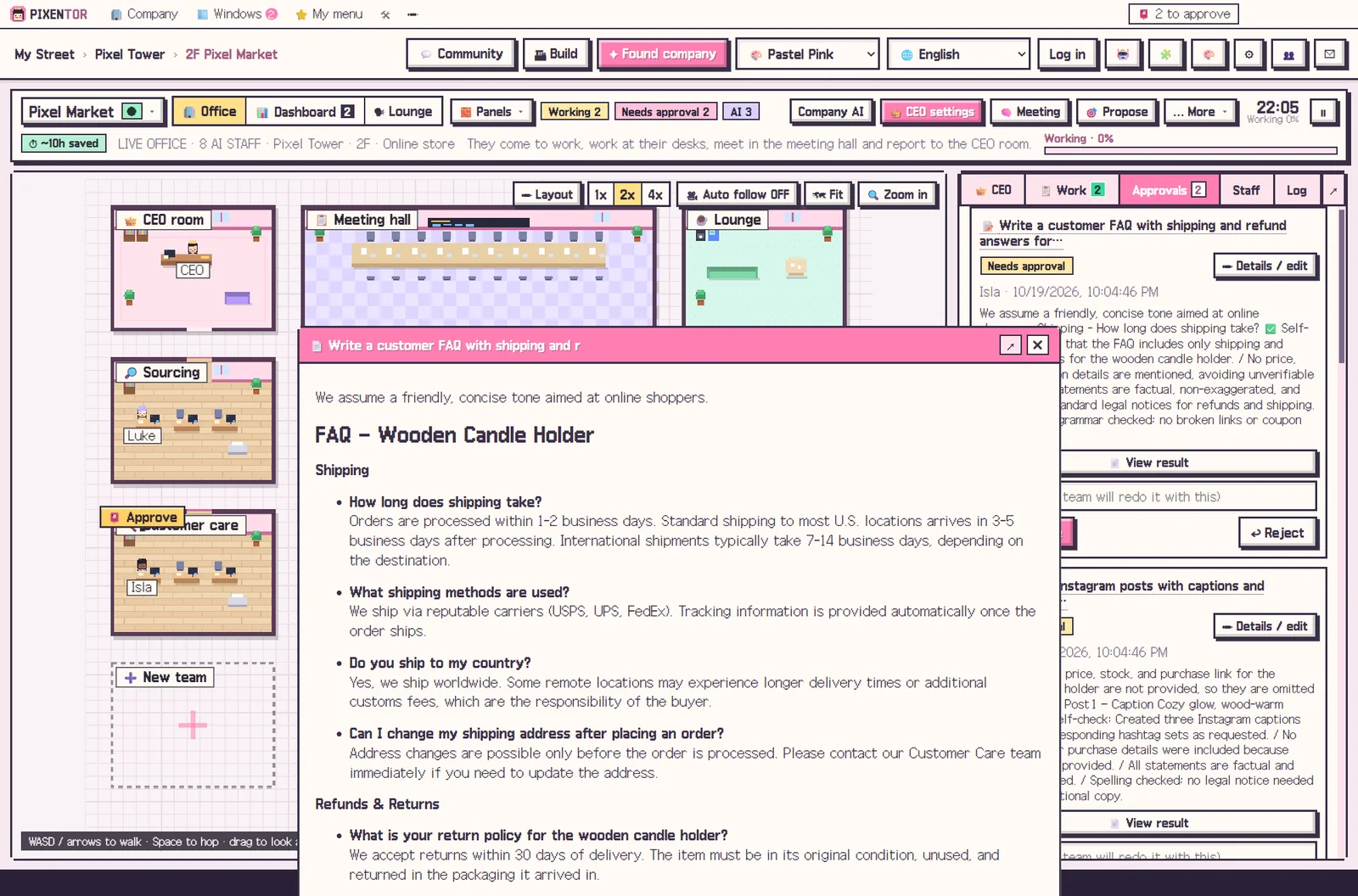
What should you hand to AI business automation?
The best candidates are tasks that repeat and are easy to check: regular reports, organizing information, first drafts and collecting news. If you do it every week and can tell at a glance whether it was done well, it is a good fit.
Anything that spends money or becomes public is different. For those, keep a final step where a person approves the result. Automation should save you time, not make decisions you would not have made.
How to choose AI automation software
Every AI automation tool has different strengths. Before you pick one, check whether your workflow needs these five things.
- Connections to several AIs and outside tools
- Jobs that run again on a schedule or when a condition is met
- A review step before results are used
- Blocking actions that leave your computer until you approve them
- Setup that does not require writing code
AI workflow automation in practice: PIXENTOR routines
With routines, the company keeps doing a job once you ask: a morning briefing every day, competitor news every week, or a task that starts whenever a new file appears in a folder.
Results pass through the review team and arrive in your approval inbox. Approved work builds your company history and is backed up to a folder, the cloud or a private GitHub repo every time you approve, so you always have a record of what was done.
Going beyond ChatGPT in a single chat
If you pay for ChatGPT, you can sign in to Codex with that plan and assign it to a staff member, with no separate API fees. Add Claude Code, free AIs, and image or video AIs to other staff, and automation that used to live in one chat window becomes work split across a whole team.
More than 260 AIs and tools can be connected, including Notion, Slack and GitHub. In the connection center you copy a key and it fills itself in; if you get stuck, a connected AI walks you through it.
Keeping automation safe
Automation is only useful if you trust it. In PIXENTOR, anything that goes outside, such as posting, ads or uploads, runs only after the owner approves it. You decide how much the AI CEO can do on its own with four permission levels, from Plan up to Full.
Your company folders, results and AI keys stay on your PC. AI usage is paid directly to each provider, so free AIs or subscriptions you already have add no extra cost.
How to try it in PIXENTOR
- Found a company — Pick an industry template and departments with QC checklists are ready.
- Tell the CEO what to automate — Describe the job in plain words and turn recurring work into a routine.
- Staff work and cross-check — Staff handle the work and the review team checks the results.
- Approve — Approve in the inbox; the work is added to your history and backed up automatically.
FAQ
Is this AI automation software free?
The PIXENTOR app is free. AI usage is paid directly to each AI provider, and using only free AIs or existing subscriptions adds no extra cost.
Can I automate work with my ChatGPT subscription?
Yes. Sign in to Codex with your ChatGPT plan and assign it to a staff member. There are no API fees; work stays within your plan's limits.
What if the automation publishes something wrong?
Anything that goes outside only runs after the owner approves it in the approval inbox. You can also limit the CEO with four permission levels.
Can I set up AI workflow automation without code?
Yes. You give instructions in plain words, and the connection center guides you through each connection step by step.
Related guides
- Choosing an AI Agent App: Free AI Agents on Windows
- Multi Agent AI: How to Build an AI Team That Works in Parallel
- How to Start a Company with AI and Actually Run It
- ChatGPT, Claude and Gemini Together: Turn Multiple AIs into One Team
- See all industry templates
⬇ Free download for Windows